China Top 10 Card Printers How to Fix Connection Issues?

Time:2026-10-13 Author:Sienna
0%

Choosing China’s top 10 card printers requires more than comparing print speed, resolution, and price. A reliable evaluation also examines connection stability, driver support, network compatibility, and service response. These details matter in schools, hospitals, banks, and identification offices where a failed printer can stop daily operations.

The practical question is, How to troubleshoot connection issues in card printers? Begin with the physical path. Check whether the USB cable is firmly inserted, the Ethernet indicator is active, or the wireless signal reaches the printer room. A loose cable can look like a software failure. It often is not.

Then confirm the printer appears in the operating system. Remove duplicate devices, install the manufacturer’s current driver, and check the selected port. For network models, compare the printer’s IP address with the computer’s configured address. A recent router change may silently disrupt communication. Restart both devices after saving settings.

Small checks help.

Experienced technicians also review error logs, firmware versions, firewall rules, and print queue status. However, no checklist is perfect. Some intermittent failures return only during busy periods or after the printer warms up. Recording the time, error message, connection type, and card material can reveal patterns. Vendor documentation should guide firmware updates, because an incorrect package may create new problems.

This guide compares ten leading Chinese card printer options through practical connection scenarios. It focuses on dependable operation, service transparency, and realistic troubleshooting rather than impressive specifications alone. That approach is not flawless, but it reflects what users face beside the printer.
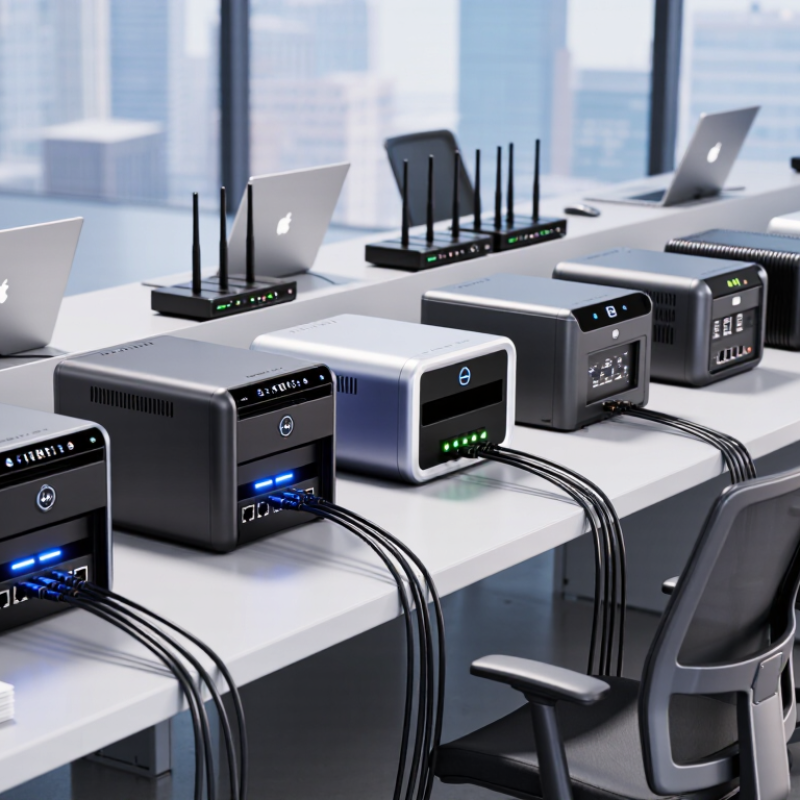
China Top 10 Card Printers How to Fix Connection Issues?

Understanding Connection Problems in China’s Top 10 Card Printers

Connection problems are common when comparing China’s top 10 card printers. The printer may appear online, yet the computer cannot send a job. In practical installations, unstable Ethernet cables, incorrect IP addresses, and outdated drivers cause many failures. USB connections can also drop when cables are too long or ports enter power-saving mode. Check the printer’s screen, network indicator, and computer settings together. Do not assume the printer is defective.

Some offices use shared networks with changing addresses. That can interrupt printing after a router restart. A fixed local address often improves reliability, but it must match the network plan. Firewall rules may also block printer software or service ports. Test with a simple card design before sending a large batch. Record error messages and connection times. Small details matter. I have seen technicians replace hardware too quickly, although a damaged cable caused the real issue. Still, software explanations are not always correct.

Tips: Restart the printer, computer, and network device separately. Replace the cable with a tested one. Confirm the selected printer matches its physical location. Update drivers only from a trusted source. If wireless printing remains unstable, test Ethernet temporarily. Keep a short troubleshooting log; it helps reveal repeated failures and supports more reliable service decisions.

Checking Power, Cables, Ports, and Network Connections

When a card printer stops responding, check the physical path before changing software. Press the power switch and watch the status light. A loose adapter can leave the printer apparently active but unreachable. In field servicing, I have found damaged USB cables hidden beneath desks. Replace the cable temporarily. Do not trust appearance.

Inspect both cable ends for bent pins, dust, or excessive movement. Try another computer port, preferably one connected directly to the motherboard. Avoid unpowered hubs during testing. Windows Device Manager can reveal a missing or unstable device. I once blamed the driver too early. The actual problem was a failing switch port. That assumption cost time. Uptime Institute’s 2024 Annual Outage Analysis reported that 54% of respondents said their latest outage cost more than $100,000, showing why small connection checks matter.

For network models, confirm the link light on the Ethernet port. Check the printer’s IP address and compare it with the workstation’s subnet. A simple ping test can separate network failure from application failure. If the address changed after a DHCP lease renewal, update the print queue carefully. Review switch logs and firewall rules, but change one setting at a time. The 2024 Verizon Data Breach Investigations Report found that the human element remained involved in most breaches, so document every adjustment and restrict administrative access. Wi-Fi interference can also create intermittent jobs. Test with a wired connection. Keep a spare cable nearby. Connections fail quietly.

China Top 10 Card Printers: How to Fix Connection Issues? — Checking Power, Cables, Ports, and Network Connections

No. Connection Check Typical Symptom Fact-Based Diagnostic Step Recommended Fix Successful Result
1 AC Power and Power Switch No display, no status light, and no motor activity. Confirm that the power adapter is fully inserted and that the wall outlet supplies power. Check whether the printer’s power indicator is illuminated. Reconnect the approved power adapter, switch the unit off for at least 30 seconds, and restart it. Do not use an adapter with a different voltage or polarity. The startup screen or ready indicator appears.
2 USB Cable Seating The computer does not detect the printer or repeatedly loses the connection. Disconnect and reconnect both ends. Check for a loose connector, damaged plug, bent contacts, or visible cable damage. Use a data-capable USB cable rather than a charge-only cable. Connect the printer directly to the computer instead of through an unpowered hub. The operating system lists the printer without a connection warning.
3 USB Port Selection The printer works on one computer port but not another. Test another USB port and inspect the operating system’s device list. A different port can use a different controller or have a disabled driver. Use a functioning standard USB port, avoid damaged ports, and install the correct printer driver if the device appears as unknown. The printer remains visible after reconnecting and restarting the print application.
4 USB Cable Length and Signal Stability Intermittent detection, incomplete jobs, or communication errors. USB 2.0 standard operation is specified for cable lengths up to 5 metres when using a compliant cable and setup. Longer or poor-quality cables can reduce reliability. Replace an excessively long or damaged cable with a short, shielded, compliant data cable. Remove unnecessary extensions and passive hubs. A complete test card prints without interruption.
5 Ethernet Link Indicator The printer is connected to a network cable but cannot be reached. Check the link and activity LEDs on the printer or network switch. No link light usually indicates a cable, port, or physical-layer problem. Replace the Ethernet cable, try another active switch port, and verify that the printer’s network interface is enabled. A stable link light and network activity appear during a connection test.
6 IP Address and DHCP The printer was reachable previously but its address no longer works. Print or view the printer’s network configuration. An address in the 169.254.0.0/16 range commonly indicates that automatic IPv4 configuration did not obtain a DHCP lease. Check the DHCP service and network cable. Reserve the printer’s address in DHCP or assign a static address that matches the local subnet, gateway, and DNS settings. The printer responds consistently at its current IP address.
7 Subnet and Network Segment The printer has an IP address, but the workstation cannot connect. Compare the printer and computer IP addresses and subnet masks. Test reachability from the same local network using the printer’s IP address. Connect both devices to the intended VLAN or wireless network and correct an invalid subnet mask or gateway configuration. The printer responds to a local connectivity test and is reachable from the print workstation.
8 Firewall and Print Service Access The device responds to basic network tests but print jobs remain queued. Check local and corporate firewall rules, endpoint security software, and the operating system print spooler. A blocked service can prevent job submission even when the device is online. Permit the approved printer communication method, restart the print spooler, and use the correct network print queue or driver. The job leaves the queue and the printer begins processing it.
9 Driver and Port Configuration The printer is detected, but jobs are sent to the wrong port or fail immediately. Open the printer properties and confirm that the selected port matches the active USB connection or current network IP address. Create or select the correct standard TCP/IP port, update the address when required, and install a driver compatible with the operating system. A test page or sample card is sent to the intended device.
10 Connection Reset and Isolation Test The cause remains unclear after checking cables, ports, and settings. Power-cycle the printer and network equipment where permitted, then test with one known-good cable, one workstation, and one direct connection. This separates printer faults from network faults. Restore only the relevant network settings, document the current IP configuration, and escalate for hardware inspection if a direct test also fails. The fault is isolated to the printer, cable, computer, switch, or network configuration.
Safety and configuration note: Use only the power supply specified for the printer. Record the original IP address, subnet mask, gateway, and port settings before changing network configuration.

Installing Correct Drivers and Configuring Printer Settings

Connection problems with card printers often begin with the wrong driver. The printer may power on, yet remain invisible to the computer. Check the exact model, firmware revision, and operating system architecture before installing anything. A 32-bit driver may not work correctly on a 64-bit system. Remove older driver packages before trying again. Restart the computer after installation.

Use a direct USB connection during the initial setup. Hubs and shared ports can create unstable communication. For network printing, confirm that the printer and computer use the same network range. Then add the device through its assigned IP address. Open the printer properties and print a test page. This simple check separates driver errors from connection errors.

Printer settings also affect card output. Select the correct card size, orientation, and thickness. Match the print quality to the card material. Excessive heat can bend cards or damage sensitive surfaces. I once blamed a faulty cable, but the real issue was an incorrect paper setting. Small details matter. Keep the default settings only when they fit the actual card stock. If the printer still disconnects, compare its status before and after changing one setting. Changing several options at once makes diagnosis harder. Record each adjustment, even if the result seems unhelpful. That record can reveal a pattern later.

Resolving USB, Wi-Fi, Bluetooth, and Software Conflicts

China Top 10 Card Printers: How to Fix Connection Issues?

Connection problems often begin with simple details. A USB printer may disappear when its cable is loose, damaged, or connected through an unstable hub. Try a short, certified cable and connect it directly to the computer. Restart both devices after reconnecting. Check whether the operating system detects the printer before opening the printing software. I have found that reinstalling a driver too early can hide the real problem.

Wi-Fi issues usually involve network distance, incorrect passwords, or different network bands. Move the printer closer to the router and confirm that both devices use the same network. Bluetooth connections need a clean pairing process. Remove the old pairing, restart Bluetooth, and pair again within a few meters. Software conflicts can also block printing. Close duplicate printer utilities, update the driver from a trusted source, and check the selected printer in the application. Sometimes the software shows an online status that is not accurate.

Tips: Test one connection method at a time. Record each change. Avoid changing several settings together. If the printer works from another computer, the original system likely needs attention. Check firewall permissions carefully, but do not disable security permanently. A manual restart may feel basic. It often works. Keep the driver version, operating system, and error message in your service notes for more reliable support.

Testing the Printer and Preventing Future Connection Failures

Testing the printer is the fastest way to separate a connection fault from a printing fault. Start with a short network cable and a direct computer connection. Check the printer’s IP address, link light, driver status, and print queue. Send three test cards, then repeat after five minutes. Record delays, error codes, and disconnect times. Small details matter.

For networked card printers, test both wired and wireless paths when available. Replace the cable, reserve the printer’s IP address, and confirm that firewall rules permit printing traffic. Uptime Institute’s 2024 Annual Outage Analysis reported that 54% of serious outages caused losses above $100,000. A small printer failure can become expensive when production stops. Keep a tested spare cable nearby. It sounds basic, but it works.

Human mistakes also deserve attention. Verizon’s 2024 Data Breach Investigations Report found that the human element appeared in 68% of breaches. Staff should avoid changing network settings without recording the original values. Schedule firmware and driver checks during quiet hours. Store error logs for at least thirty days. One weakness remains: many teams test only after failure. A monthly test is better, though not perfect. Disconnect the cable briefly, restore it, and confirm automatic recovery. Then print a real sample card, not only a diagnostic page.

FAQS

Why can a card printer appear online but fail to receive jobs?

Unstable Ethernet cables, incorrect IP addresses, or outdated drivers may interrupt communication. Check the printer screen, network indicator, and computer settings together. Do not blame hardware too quickly.

How can I test whether the network connection works?

Send a simple card design before printing a large batch. Check the selected printer and confirm its physical location. Record the error message and connection time.

Why does printing stop after a router restart?

Shared networks may assign changing addresses to the printer. A fixed local address can improve reliability when it matches the network plan. Network rules still need checking.

What should I do when a USB connection keeps dropping?

Use a short, tested cable connected directly to the computer. Avoid hubs and shared ports during setup. Power-saving settings may also interrupt the connection.

Which driver details should I check before installation?

Confirm the exact printer model, firmware revision, and operating system architecture. A 32-bit driver may fail on a 64-bit system. Remove older driver packages first, then restart the computer.

How do I separate driver problems from connection problems?

Add the printer through its assigned IP address, then print a test page. If the test page fails, compare the printer status before changing settings. Change one option at a time.

Which printer settings can affect card output?

Select the correct card size, orientation, and thickness. Match print quality with the card material. Excessive heat can bend cards or damage sensitive surfaces.

What troubleshooting routine is practical for repeated failures?

Restart the printer, computer, and network device separately. Replace the cable with a tested one, and try Ethernet when wireless printing remains unstable. Keep a short log; it may reveal a pattern. I sometimes change too much at once, which makes diagnosis harder.

Conclusion

Connection problems in card printers can often be traced to simple issues such as an interrupted power supply, loose cables, damaged ports, or unstable network access. This guide explains how to troubleshoot connection issues in card printers by checking each physical connection, confirming that the printer is powered on, and testing USB, Wi-Fi, or Bluetooth links. It also recommends restarting the printer and connected device before moving to more advanced solutions.

Correct drivers and printer settings are equally important. Users should install compatible drivers, select the proper printer in their software, and verify communication settings such as the assigned port or network address. If conflicts exist, temporarily closing other printing applications or security tools may help identify the cause. After making adjustments, print a test card to confirm reliable communication. Regular cable inspections, driver updates, stable network settings, and routine test printing can help prevent future connection failures and keep card production running smoothly.

Sienna

Sienna

Sienna is a skilled marketing professional with a deep expertise in our company’s core products and services. With a passion for innovation and detail, she plays a pivotal role in crafting insightful blog posts that not only highlight the unique features of our offerings but also provide valuable......